Set up AOZO POS
Choose your business type, add your details and GST, and load sample data to try it out.
#Choose your kind of business
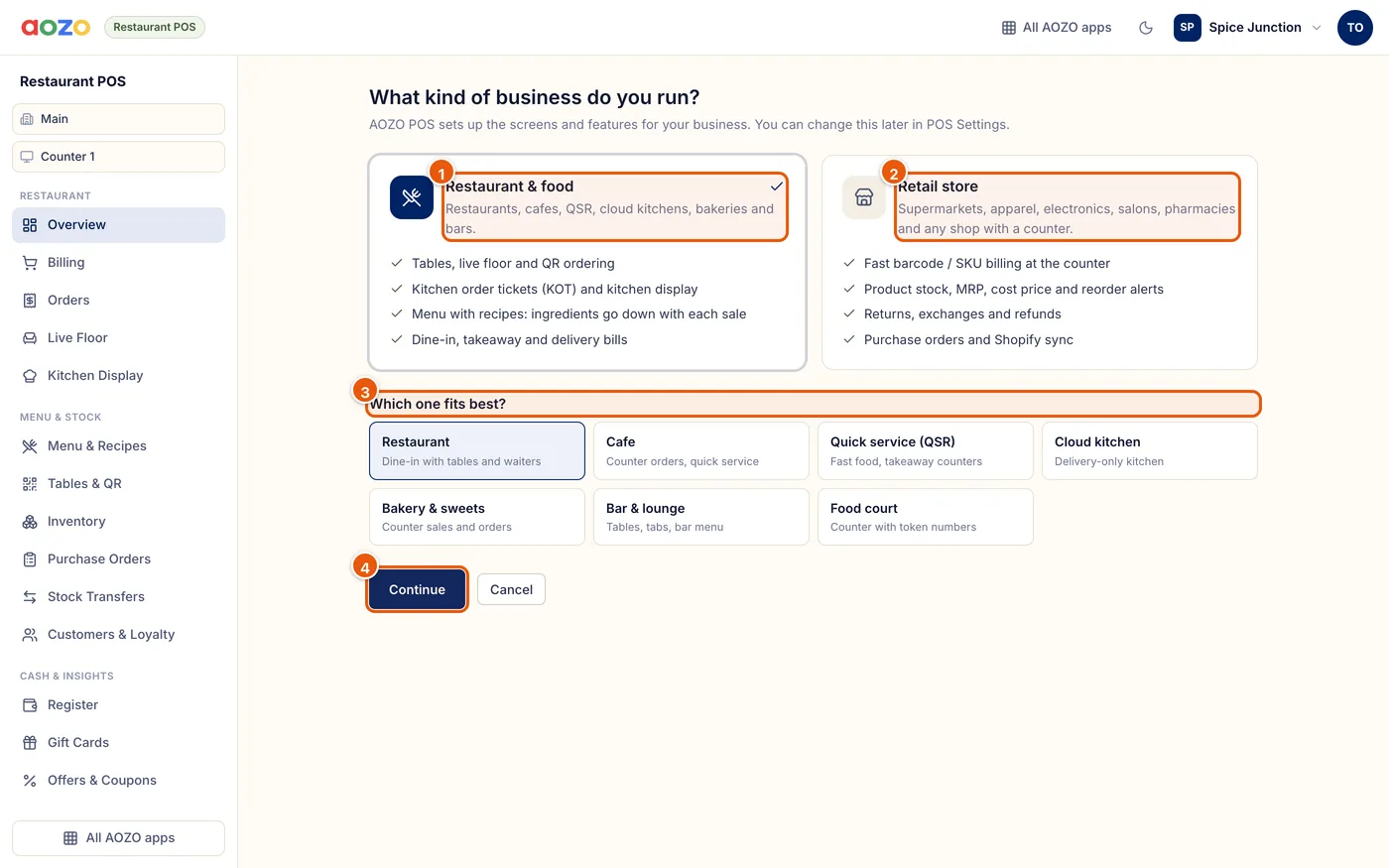
- Restaurant and food: tables, QR ordering, kitchen display and recipes
- Retail store: barcode billing, product stock, returns and purchase orders
- Pick the category that fits best, for example Cafe, Supermarket or Pharmacy
- Continue
Open POS
Open pos.aozo.in. You sign in with your AOZO account, so there is no separate password.
Pick restaurant or retail
Choose Restaurant and food or Retail store, then the category closest to your business.
Continue
Choose Continue. You can change this later from POS Settings, Business type.
#Add your business details
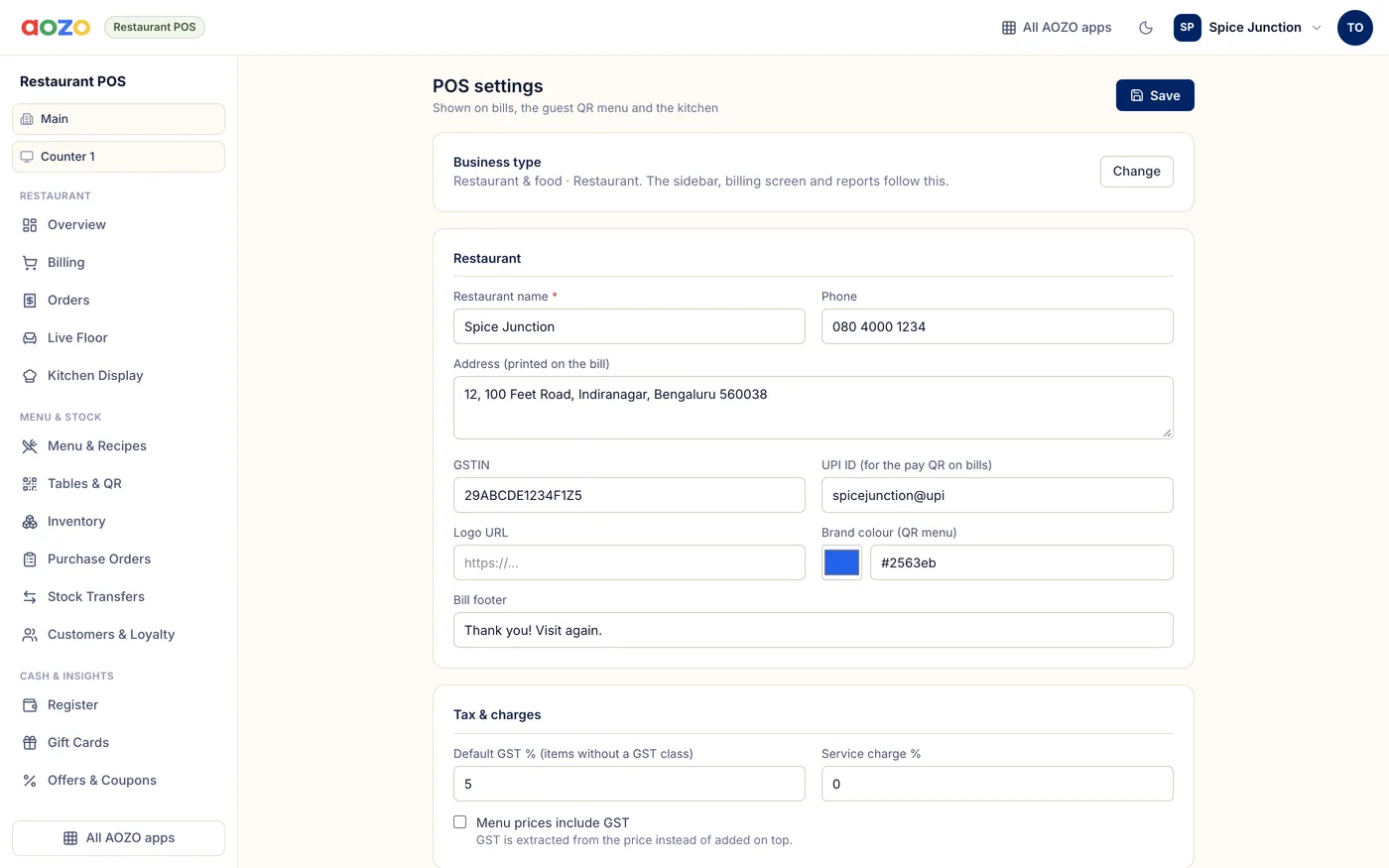
POS Settings. These details print on every bill.
Open Settings
Choose Settings in the sidebar.
Business details
Enter the name, phone and the address to print on bills.
GSTIN and UPI ID
Enter your GSTIN for tax invoices and your UPI ID, which puts a pay QR for the exact amount on bills.
Logo, colour and footer
Add a logo link and brand colour for the QR menu, and a footer line for the bill.
Tax and charges
Set the default GST % for items without a GST class, an optional service charge (restaurant), and whether your prices already include GST.
Save
Choose Save.
Want to look around first? Load the sample menu or sample products from the empty Menu or Products page, try a few bills, then delete them before you go live.
#Remove the sample data
- Open Menu and Recipes (restaurant) or Products (retail).
- Tick the sample items and choose Delete.
- Open the Categories tab and delete the empty categories.
- If you do not need them, delete the sample tables in Tables and QR and the sample GST classes.